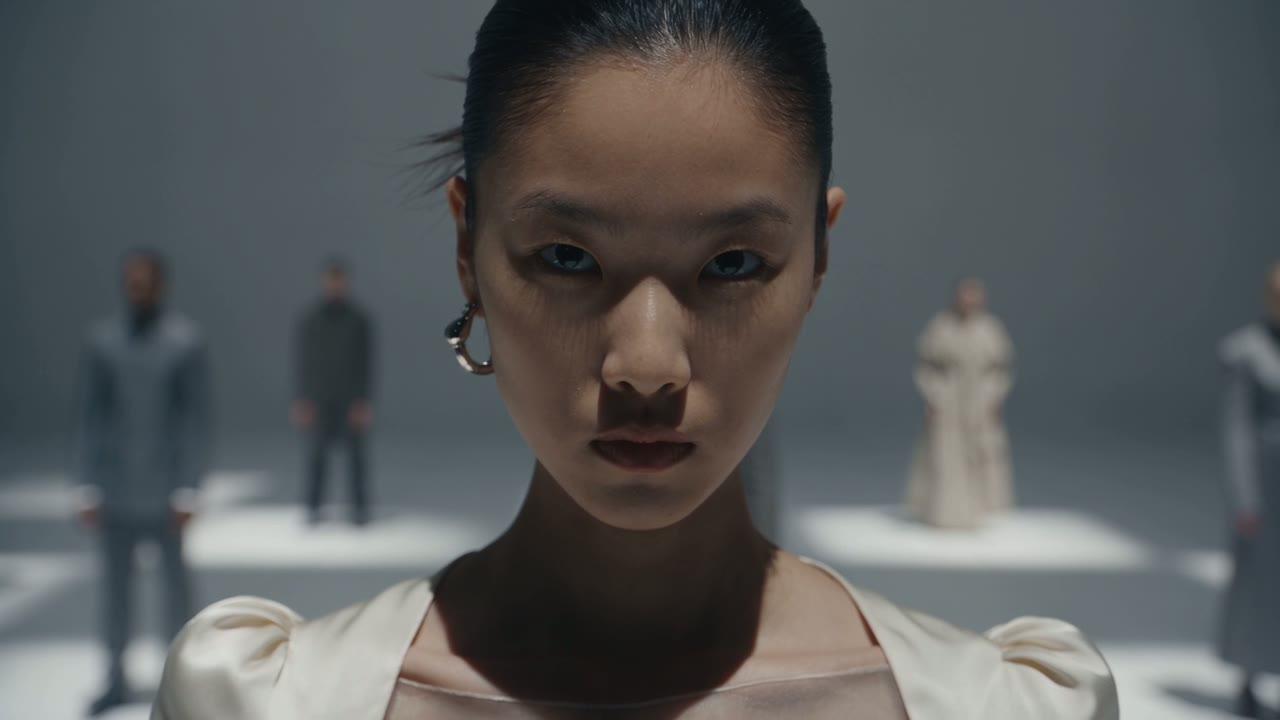
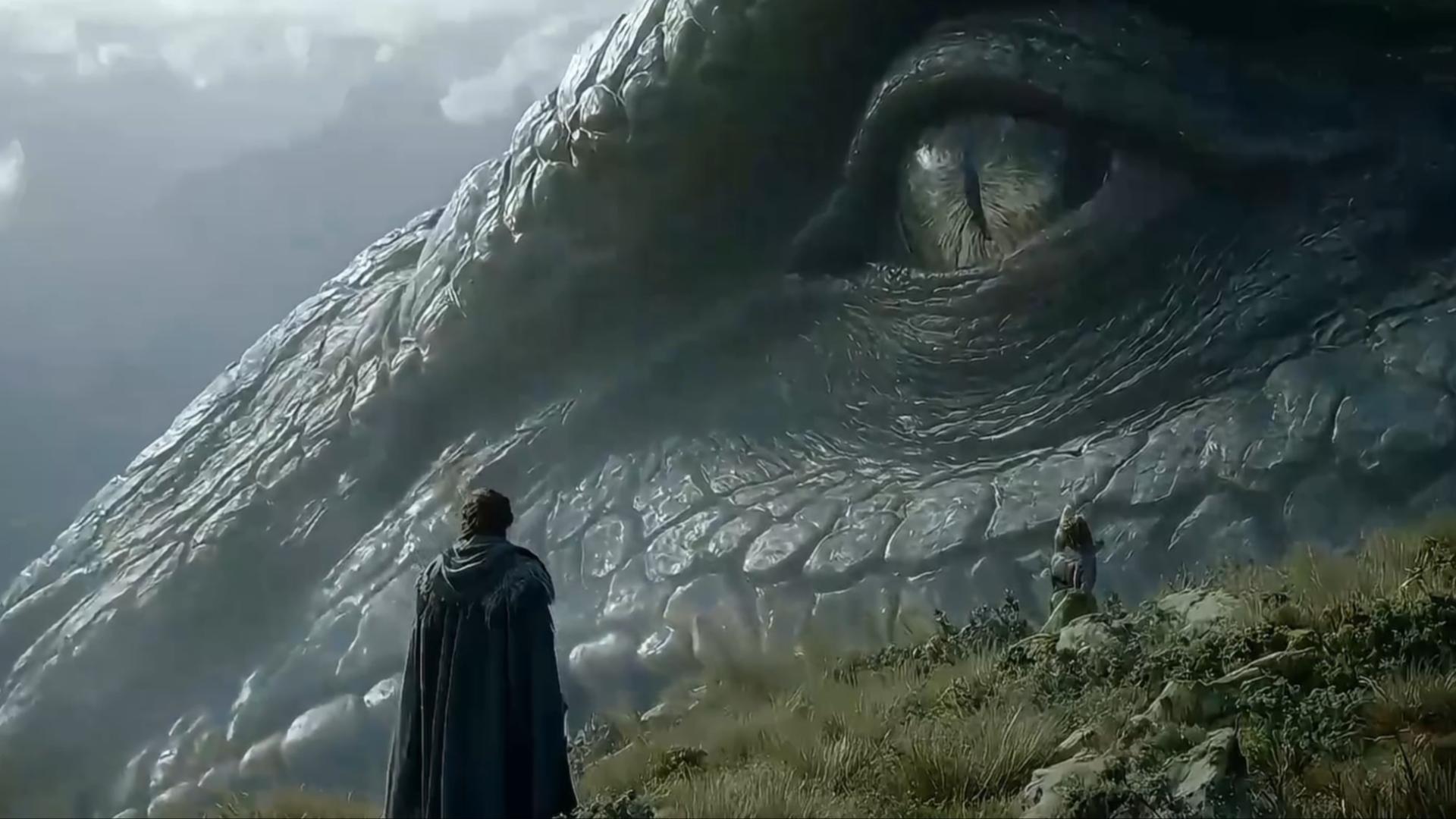
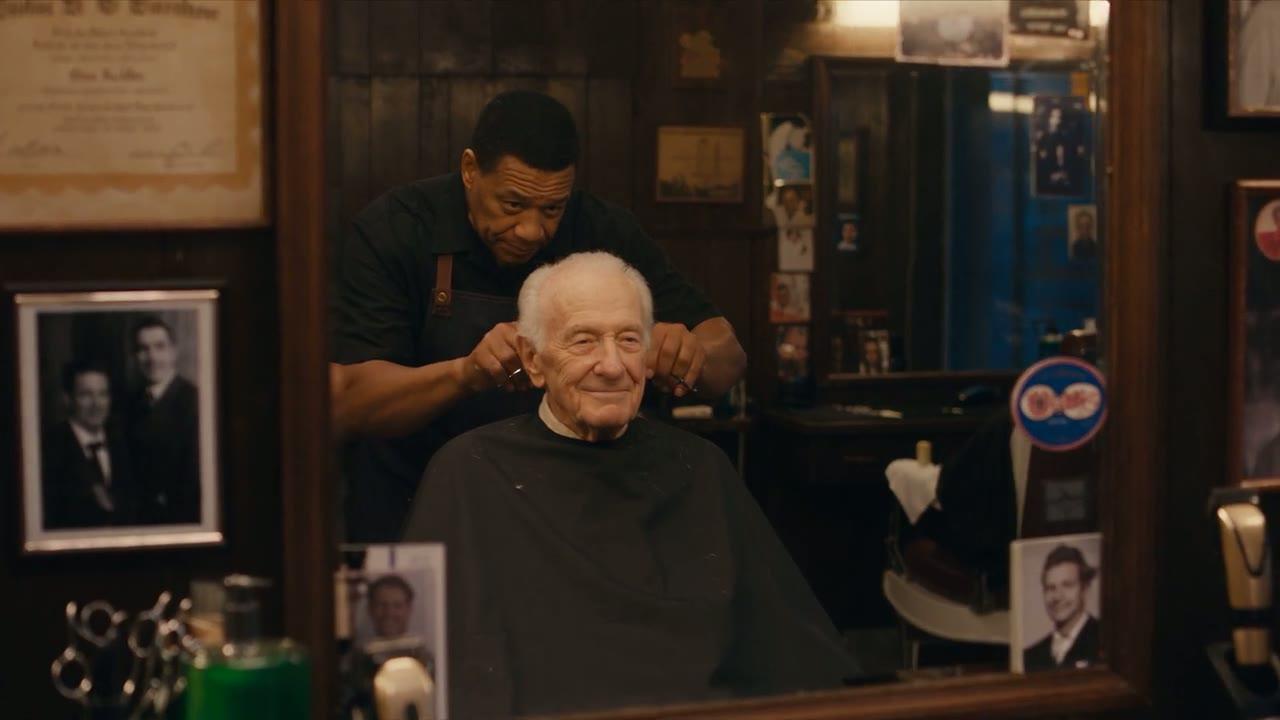
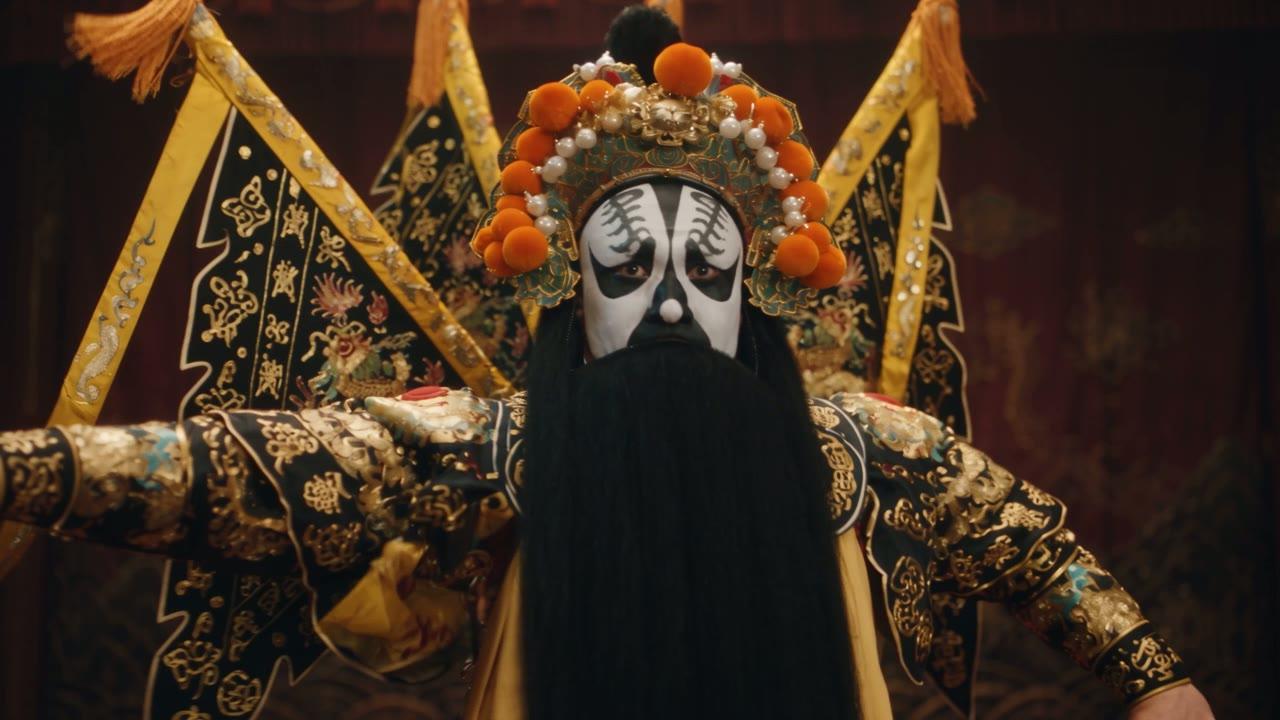
Upload a clip and say what should change. Magi2 AI’s video to video AI edits the scene, swaps products and props, builds a new background or extends the shot, with Seedance 2.5, Kling Motion Control, Wan 3.0 and more.
Same footage, new version: video to video AI examples
Start from footage you already have instead of a blank prompt. A pet-food ad gets new packaging, a green-screen take gets a world behind it, a clip that stops too soon gets its next beat. Magi2 AI’s video to video AI editor keeps the camera move and timing you shot, changes what you describe, and downloads without a watermark.
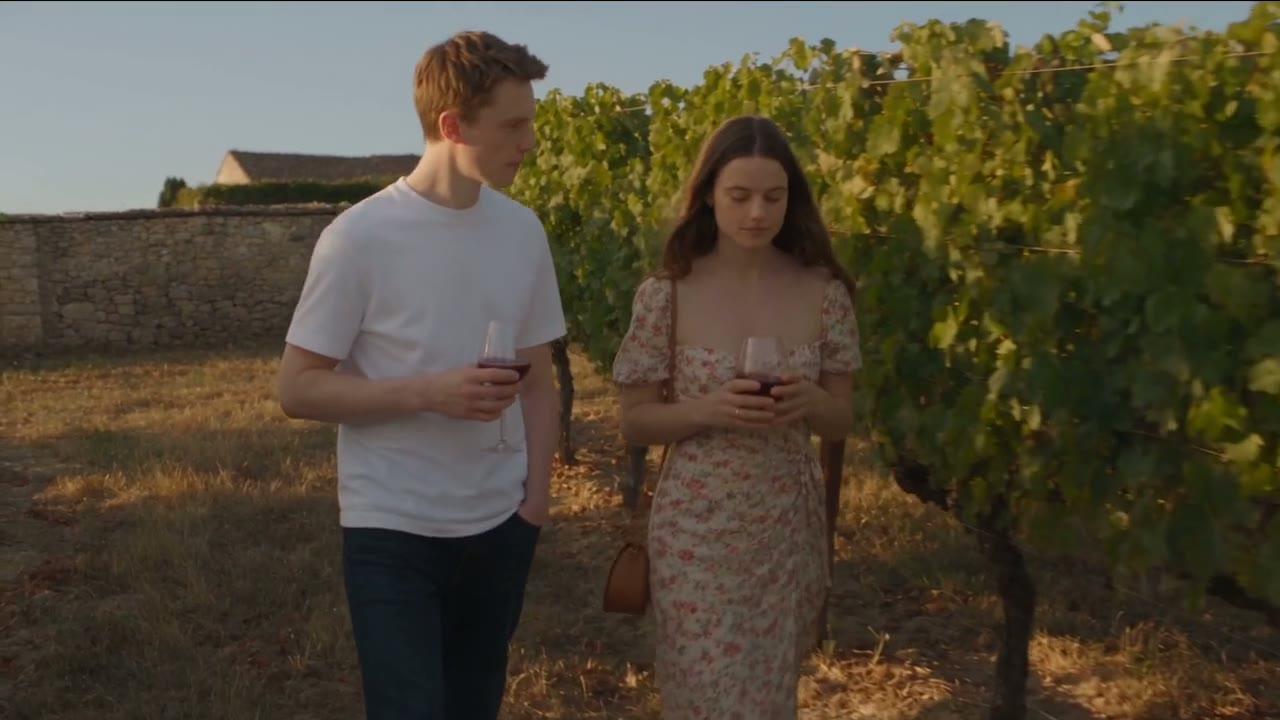
Write the change in plain words: a new location, a different prop, another outfit. On Seedance 2.5, wording such as “replace”, “remove” or “change the background” sends the job to its edit mode, which holds on to the camera path, the timing and everything you left out of the prompt. No masks, no keyframes, no timeline.
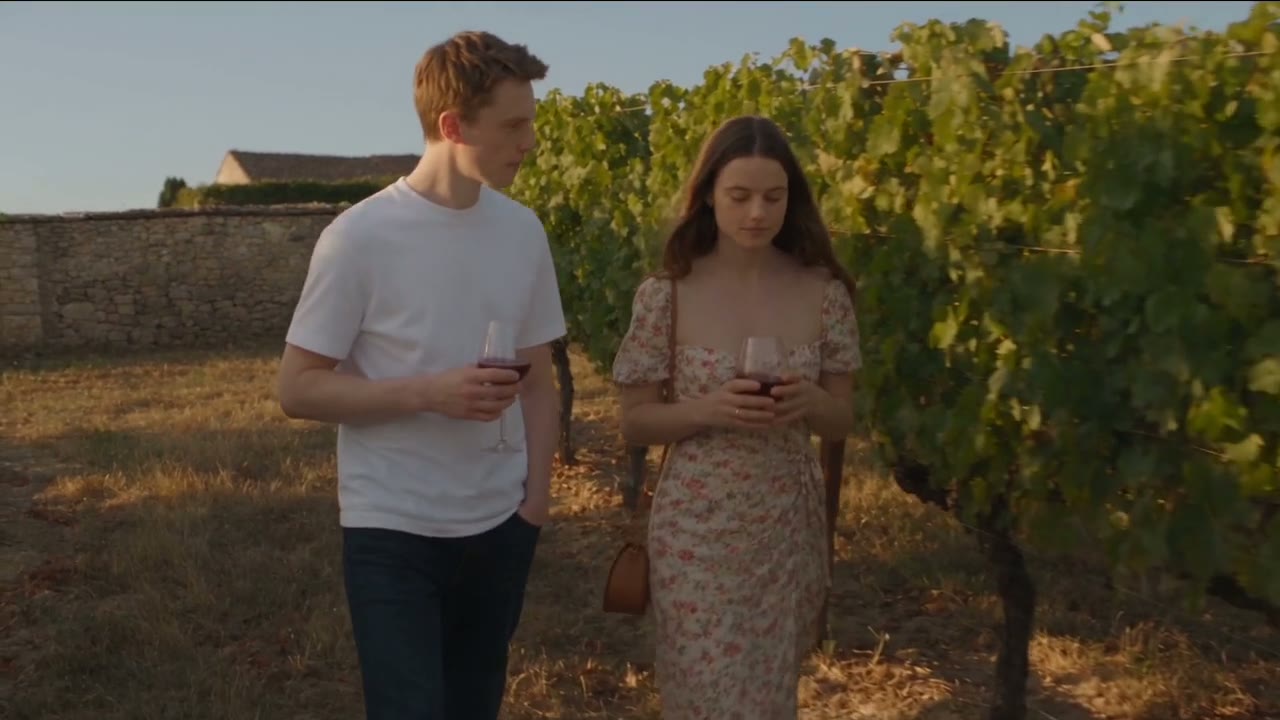
Example prompt: Change the background to a vineyard in France, replace the coffee in their hands with red wine glasses, change her outfit to a floral wrap dress with a small shoulder bag. Keep everything else unchanged. (Seedance 2.5 · 16:9 · 20s)
New packaging in every frame
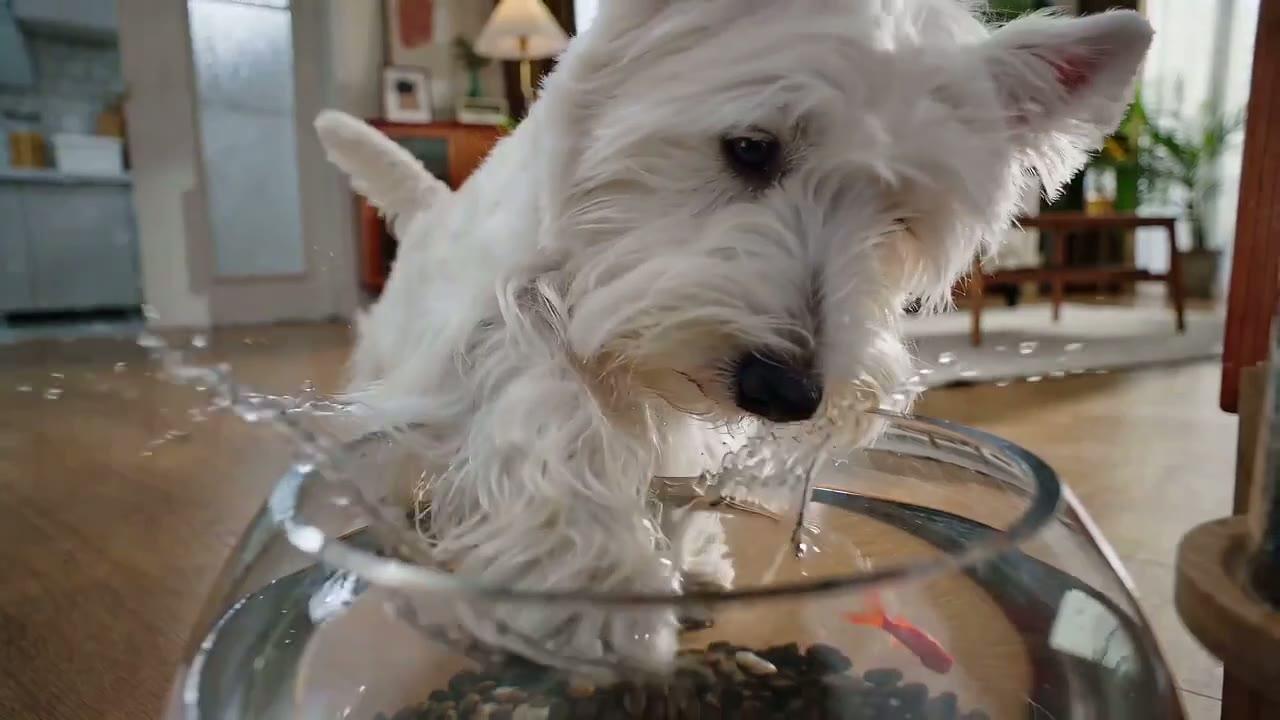
Re-cut one ad for a new pack design, a seasonal label or another market. Attach the original clip and a clean still of the new product, name what it replaces, and the model follows it through the whole shot: foreground and background, every angle, even when a hand covers part of it.
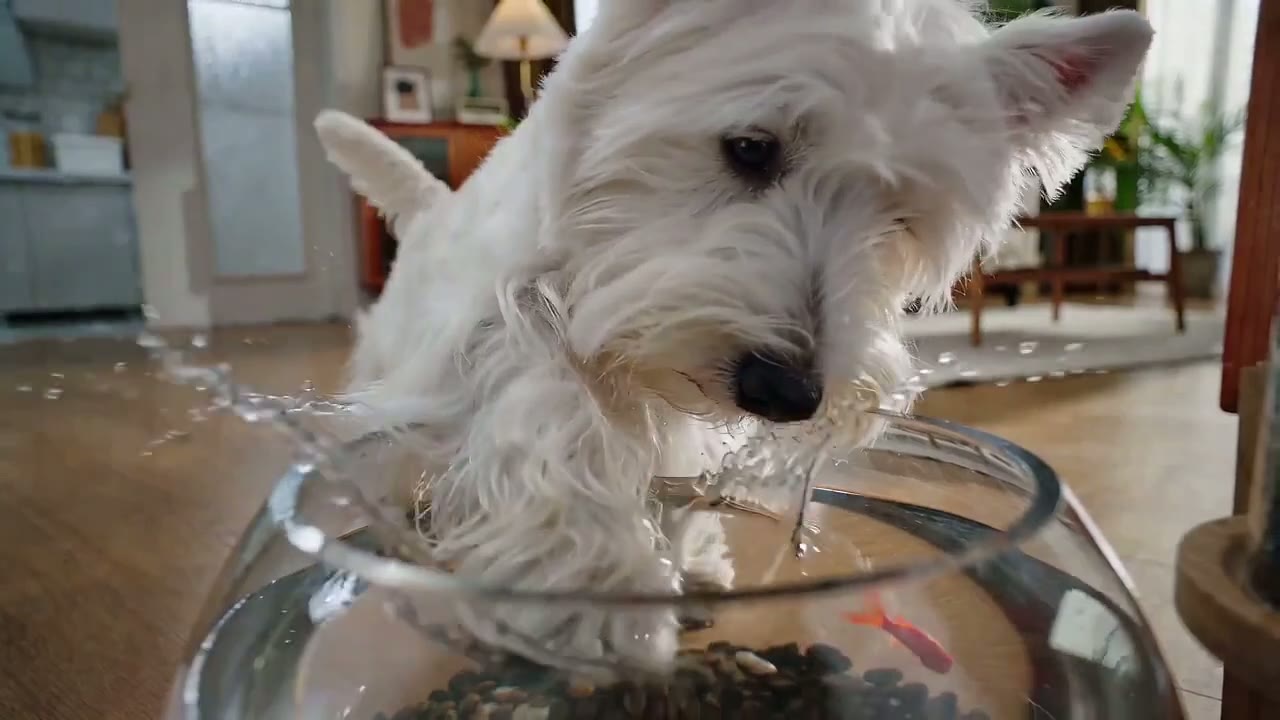
Example prompt: Replace every dog food bag in @Video 1 with the new packaging from @Image 1, in every frame and at every angle. Keep the dog, the room, the camera movement and the pacing exactly as they are. (Seedance 2.0 · 16:9 · 15s)
A new world around the same performance
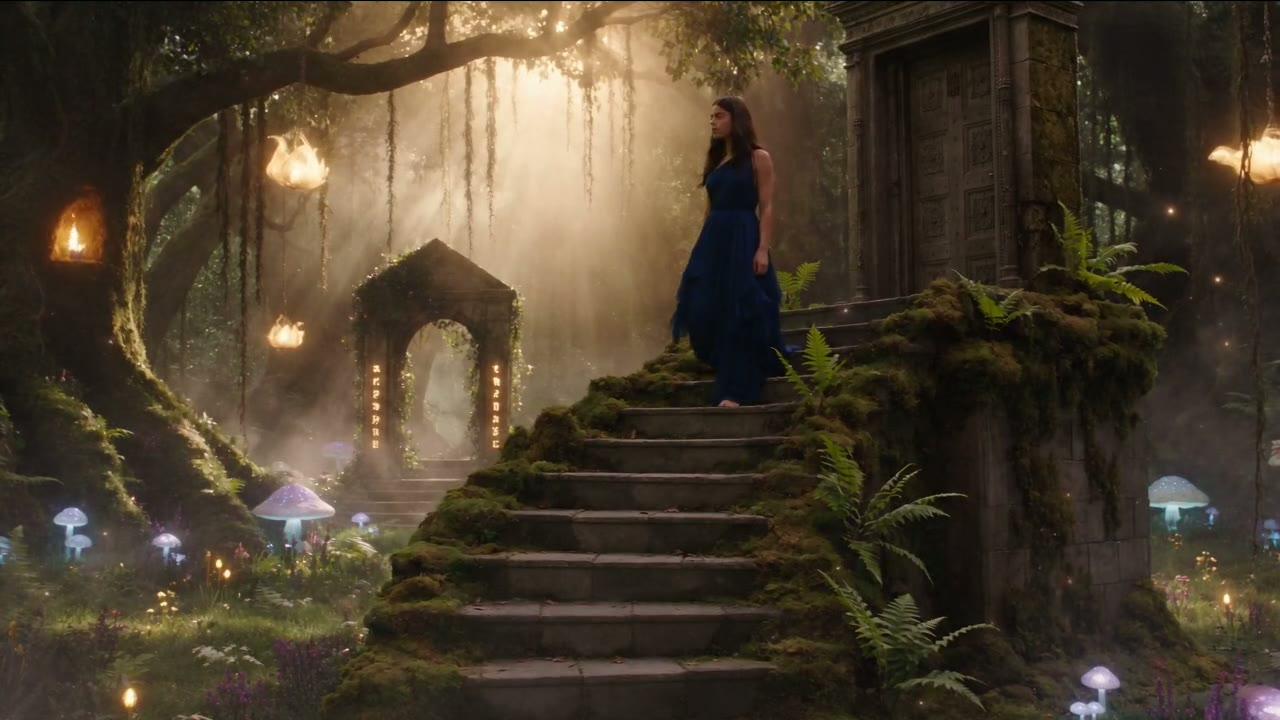
Keep the actor, the blocking and the camera move from a green-screen plate or a location you would rather not show, and describe what should surround them. Seedance 2.5 reads a source clip for its framing and movement, so the new set lines up with the take you already approved.
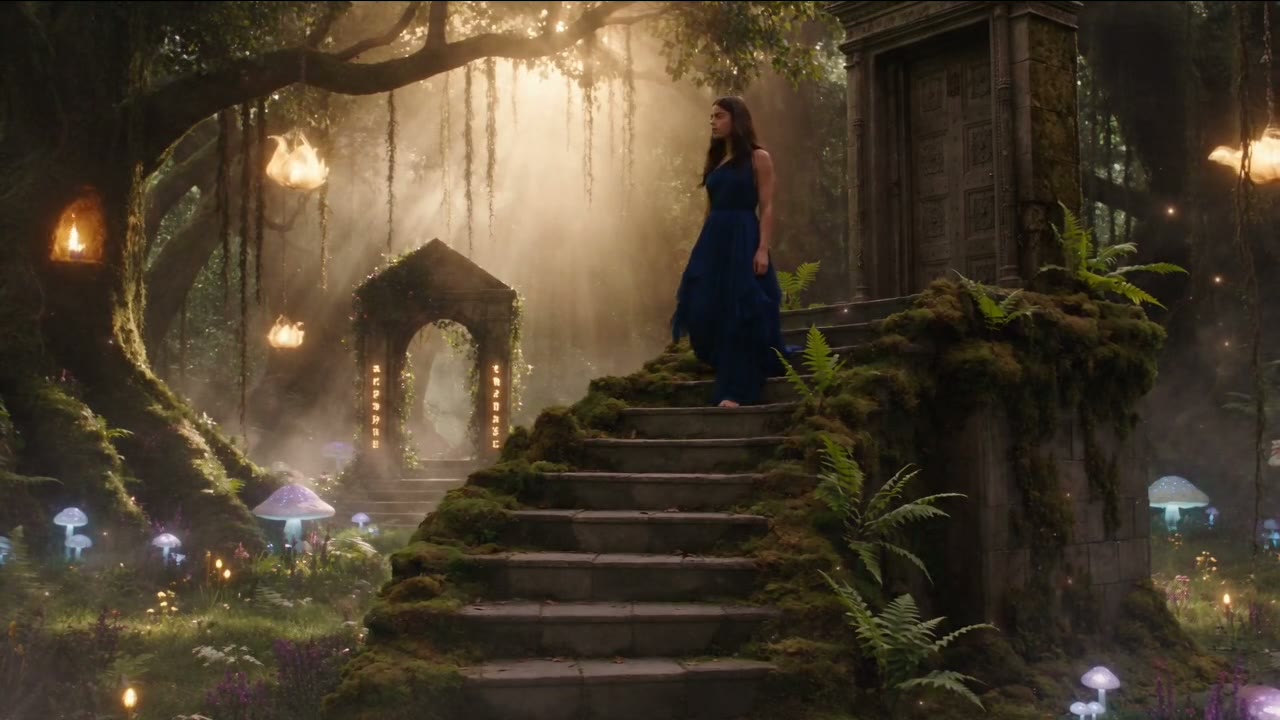
Example prompt: Keep the girl and the mossy stairs from the green-screen video and replace the green screen with a fairy-tale forest: ancient trees forming a dome, hanging vines, ferns, glowing mushrooms and drifting specks of light. (Seedance 2.5 · 16:9 · 12s)
Extend a clip past its last frame
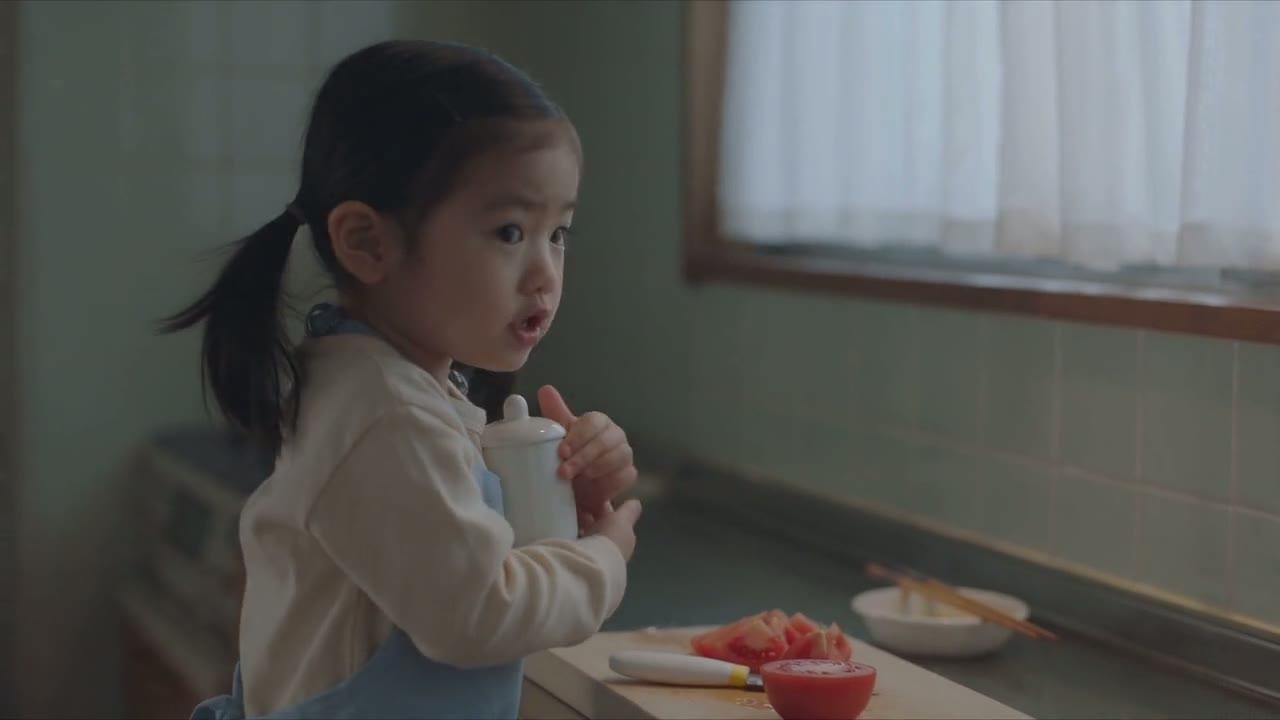
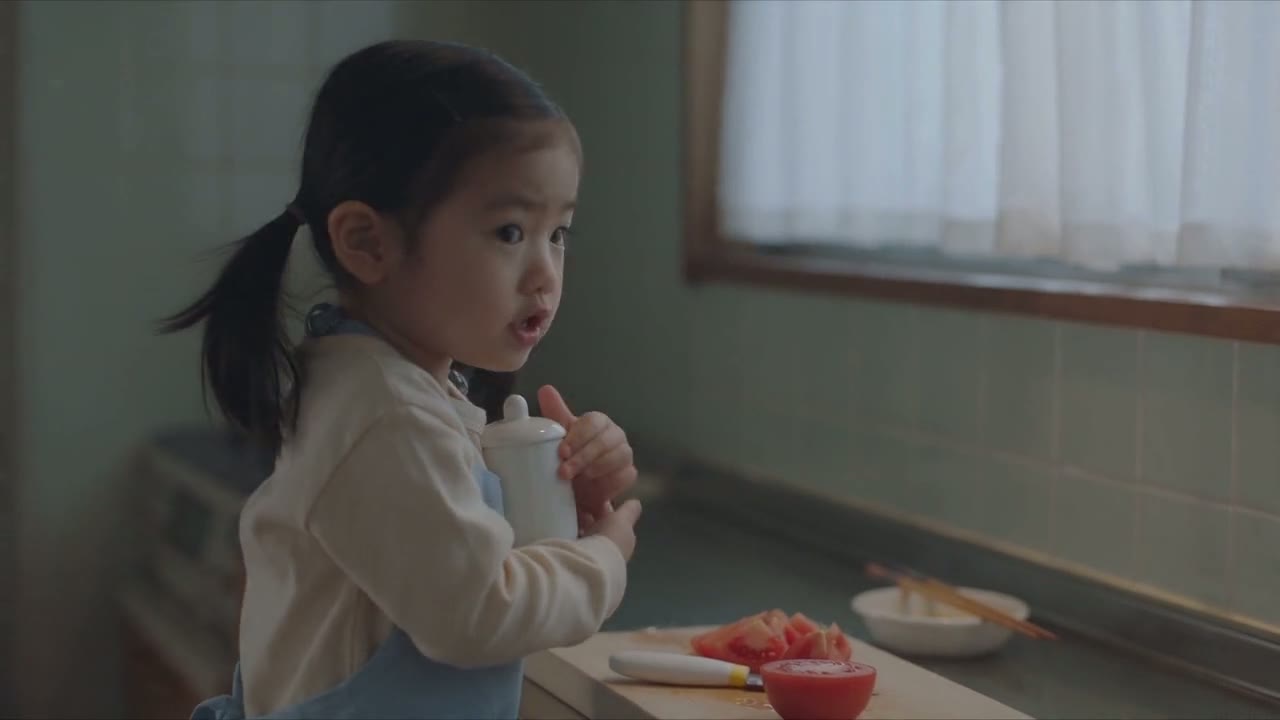
When a shot ends a beat too early, upload it to Seedance 2.5 and start the prompt with “Extend @Video 1”. The continuation keeps the people, the set and the props where they were; you only describe what happens next, and set the length you need up to 30 seconds.
Example prompt: Extend @Video 1. Keep the characters, kitchen, clothing and prop positions. The mother stops at the kitchen doorway, hair a little messy, and asks softly in Chinese, "Xiao Cheng?" (Seedance 2.5 · 16:9 · 12s)
Swap a subject, keep the moment
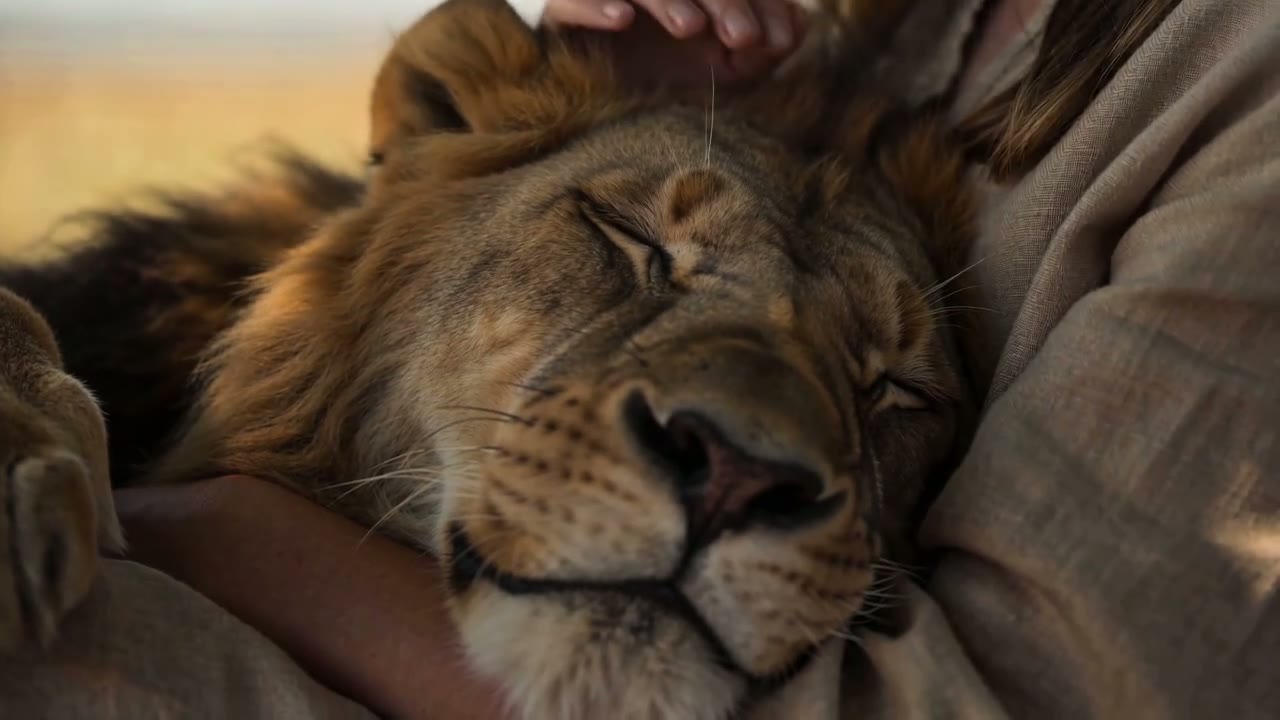
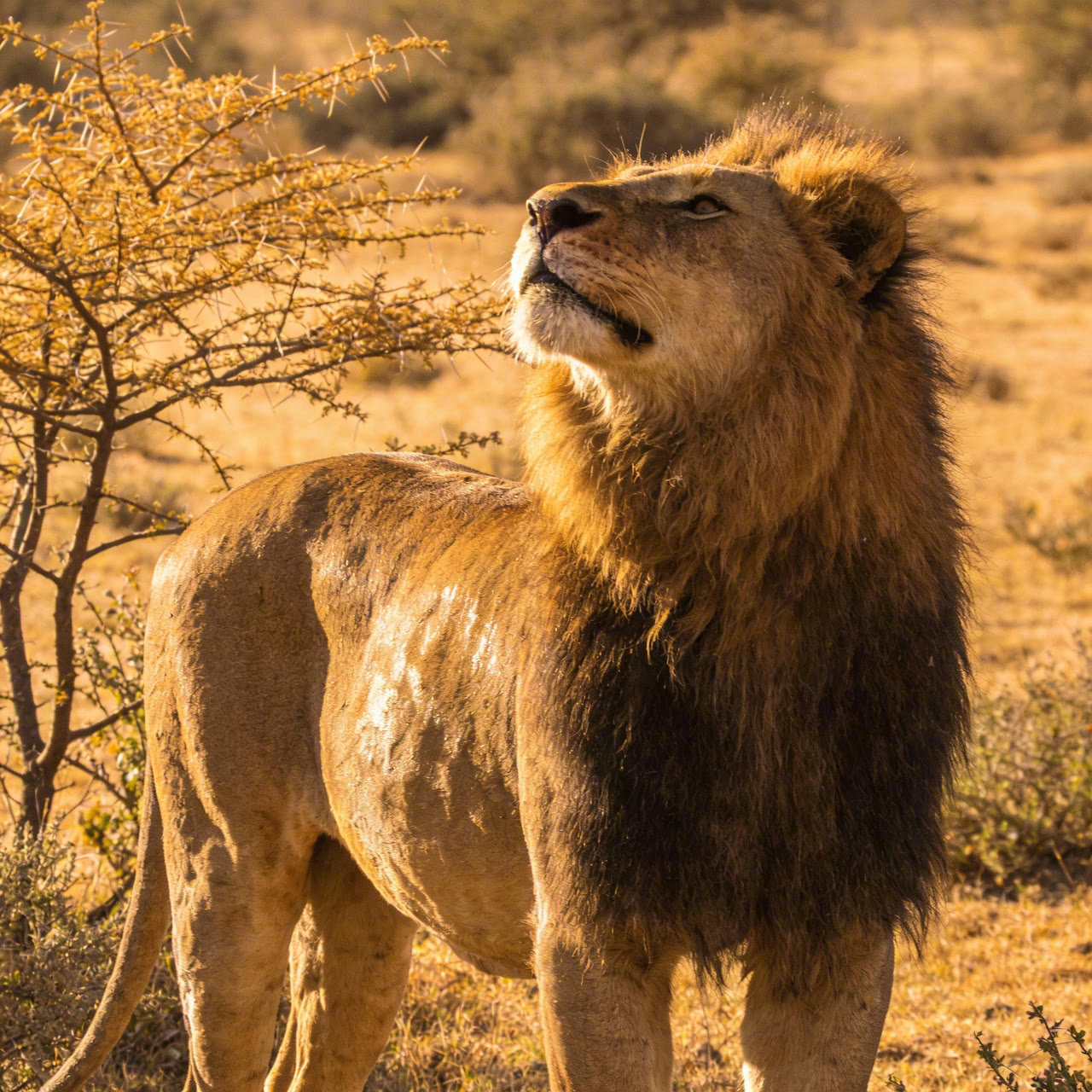
Replace one animal or object with another from a reference still, such as the cat in this clip with a lion. The pose, the touch and the light of the original take carry over, so the new subject sits inside the scene instead of looking pasted on top of it.
Example prompt: Replace the cat in @Video 1 with the lion from @Image 1. The lion lies on its side across the girl's legs, gently interacting with her in a warm and tender way. (Seedance 2.0 · 16:9 · 12s)
Move a character with a recorded performance
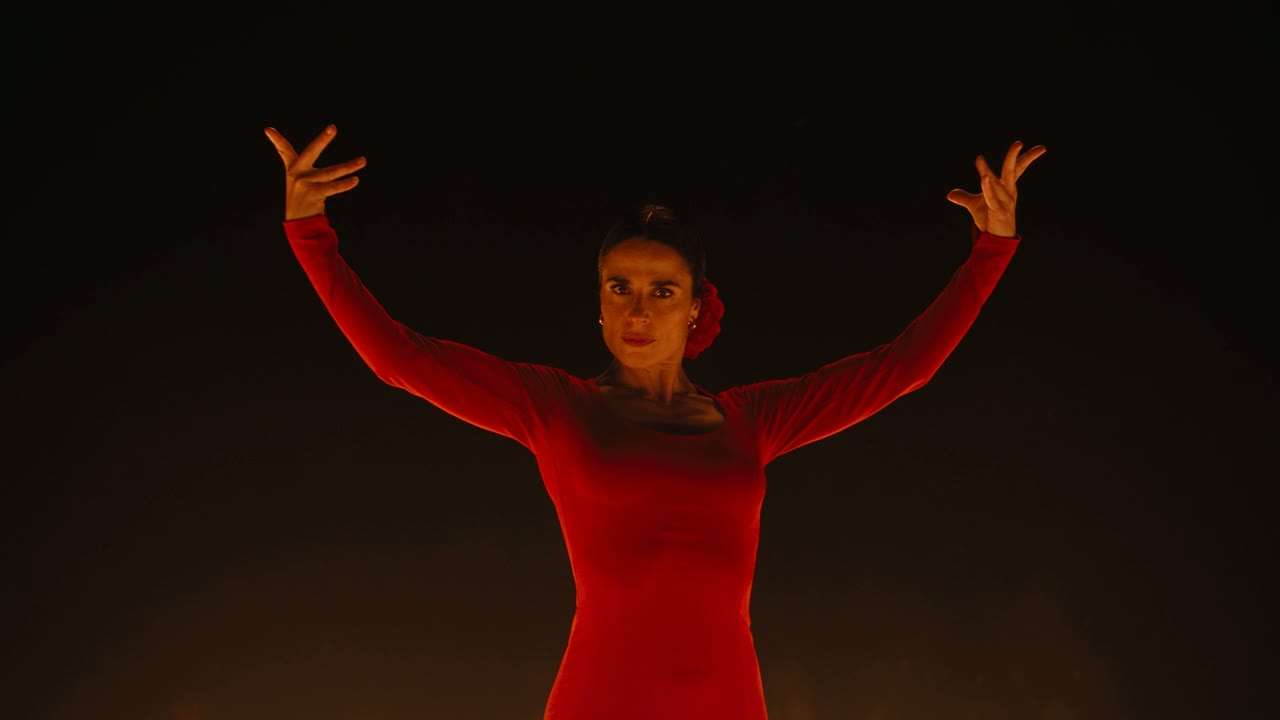
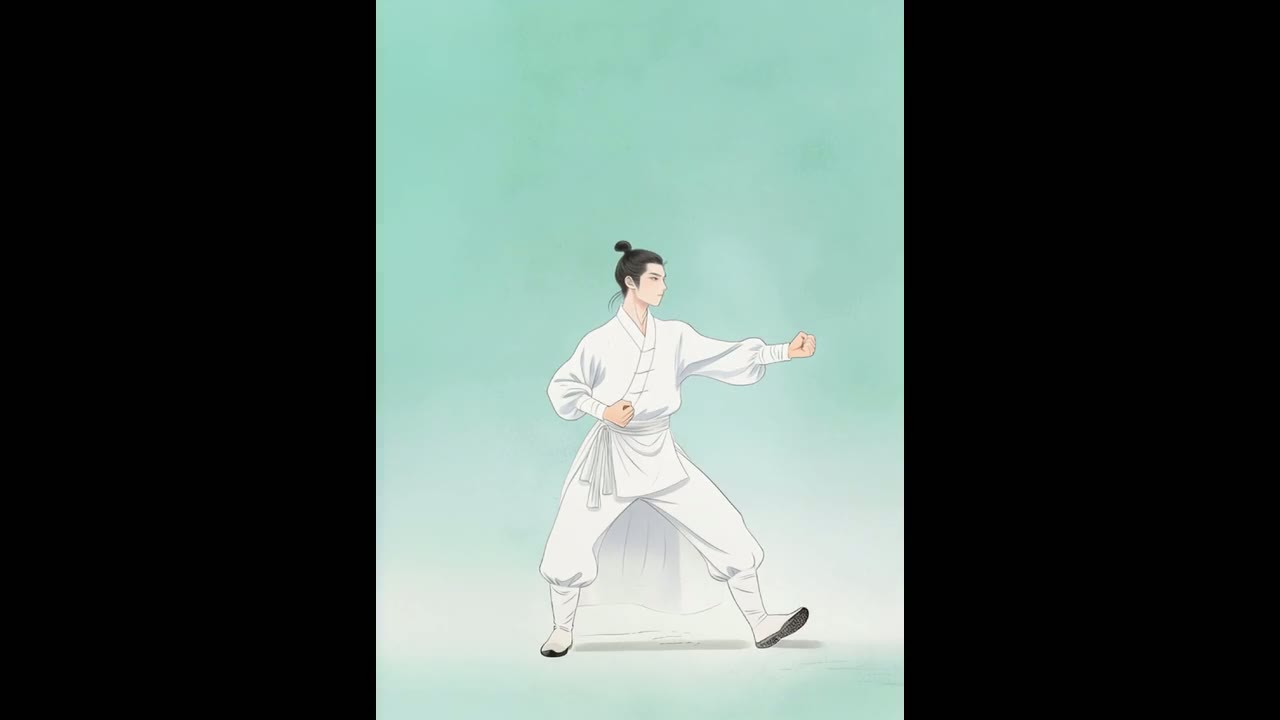
Kling Motion Control takes one character image and one motion clip, and the character performs the moves: a dance, a kata, a gesture, a walk. No prompt is needed, the result runs as long as the motion clip (3 to 30 seconds), and illustrated, painted or 3D characters keep their style while they move.
Every model below accepts a source clip. Use Seedance 2.5 for edits and extensions, Seedance 2.0 for product and subject swaps, Kling 2.6 Motion Control to move a character, Wan 3.0 for up to five clips at once, and Seedance 2.0 Mini to test on free credits.
Video to video models compared: clips, length and credits
Twelve models in the composer take a source clip. This is what each one accepts and returns, read from the live model settings, so the table changes when the models do.
Credits are the standard rate for a 5-second result made from a 5-second source clip at 720p (2K on MiniMax H3, its only setting), before plan discounts; the composer shows the exact cost for your settings. The Seedance models, MiniMax H3 and Wan 3.0 bill the seconds you upload as well as the seconds you get back, Kling O3 bills the result only, and Motion Control bills the length of the motion clip, which is also the length of the result. Wan 3.0 counts the source against a 30-second total, and Kling O3 keeps the clip’s own sound instead of making new audio. Free credits stop at 720p; higher resolutions depend on your plan.
Who it’s for
Video to video AI use cases
One shoot, every product variant
Re-cut a product film for each new pack, colour or market, and keep the footage you already paid for working.
Fresh posts from old clips
Move a clip to a new place, change an outfit or a prop, and publish a new version without filming again.
Plates and previz, finished
Turn green-screen plates and rough previz into finished shots that follow the blocking and camera you signed off.
The missing second of a cut
Continue a shot that ends too early, or fix one detail in it, when a reshoot is off the table.
Video to video AI starts from a clip you already have and generates a new version of it from your instruction. You upload the footage, describe what should change, such as the location, a product, a prop or the length, and the model renders a result that keeps the original camera move and timing. On Magi2 AI twelve models accept a clip, and nothing you download carries a watermark.
Is there a free video to video AI?
Yes. New accounts get free credits with no credit card, and Seedance 2.0 Mini accepts a source clip on those credits at up to 720p. Free results carry no watermark. Seedance 2.5 with its edit and extend modes, Kling Motion Control, Wan 3.0 and MiniMax H3 need a plan or a credit pack.
Which models accept a video on Magi2 AI?
Twelve: MAGI-2, Seedance 2.5, Seedance 2.5 Flash, Seedance 2.0, 2.0 Fast and 2.0 Mini, Kling 4.0, Kling O3, Kling 3.0 Motion Control and Kling 2.6 Motion Control, MiniMax H3, and Wan 3.0. Veo 3.1, Sora 2, Kling 3.0 and the older Seedance models start from text or images only. The table above shows how many clips each one takes, how long they may be and what a run costs.
What files and clip lengths can I upload?
MP4 or MOV. The Seedance 2.0 models and MiniMax H3 take up to three clips of 2 to 15 seconds and 50 MB each; Seedance 2.5 up to ten clips of 2 to 30 seconds and 200 MB; Wan 3.0 up to five clips of 1 to 15 seconds and 100 MB; Kling O3 one clip of 3 to 10 seconds. Motion Control takes one motion clip of 3 to 30 seconds plus one character image. Seedance 2.0 Mini turns down clips smaller than about 854 × 480.
How do I edit or extend a clip with Seedance 2.5?
You never pick a mode; your wording does. Upload the clip and write the change with a verb such as replace, remove or change the background, and the job runs as an edit that leaves everything else alone. Start the prompt with “Extend @Video 1” and describe what happens next, and it runs as an extension. An edit needs a source of at least 4 seconds.
Can I put a new background behind my footage?
Yes. Say what stays (the people, their movement, the camera path), then describe the new setting and its light. A green-screen plate gives the cleanest result, as the demo above shows, but any clip with a clear subject can be moved somewhere else. For a series of shots, attach the same still of the new location to every run.
How is motion control different from editing a clip?
Editing changes what is inside your footage. Motion control works the other way round: it lifts the movement out of your clip and gives it to a character from a still image, so the character performs the dance, the gesture or the walk. Kling 3.0 Motion Control and Kling 2.6 Motion Control do this, and the result is as long as the motion clip and keeps its sound. Use characters you created or have the rights to.
How many credits does a video to video job use?
It depends on the model, the resolution and the length of both the source and the result. The Seedance models, MiniMax H3 and Wan 3.0 count the seconds you upload as well as the seconds generated, so a trimmed source costs less. The table above prices a 5-second result from a 5-second clip, and the composer shows the exact figure before you generate. Failed generations are not charged.
Why did my edit change more than I asked for?
Usually the prompt describes the whole scene instead of the change. Name the one thing to replace or rebuild, point to the image it comes from, and finish with “keep everything else unchanged”. A shorter source with little motion blur holds together better, and one change per run beats five at once: stack further edits on the result.
Can I use the edited clips in ads and client work?
Commercial use is included with Pro, Premium, annual Lite and one-time credit packs; free credits and monthly Lite do not include it. The footage and stills you upload must be yours or licensed to you, because a licence for the result does not cover material that belongs to someone else.
Should I start from a video, an image or text?
Start from a video when the footage is close and only part of it has to change, or when the camera move and timing must stay exactly as shot. Start from an image when you have a still but no footage, and from text when all you have is the idea. All three run in the same composer, which switches to video to video as soon as you attach a clip.

 Seedance 2.5

 Kling 2.6 Motion Control


 MAGI-2