AI Video Upscaler: Take Short Clips to 1080P, 2K or 4K

Upload a clip of up to 30 seconds and Magi2 AI re-renders every frame at a higher resolution, recovering edges, faces and texture without changing its timing. Choose a model and a target, watch the original and the result play side by side, then download the MP4. Your first upscale runs on free credits without an account.

OriginalUpscaledSample

Raise Video Resolution, Not Just the Pixel Count

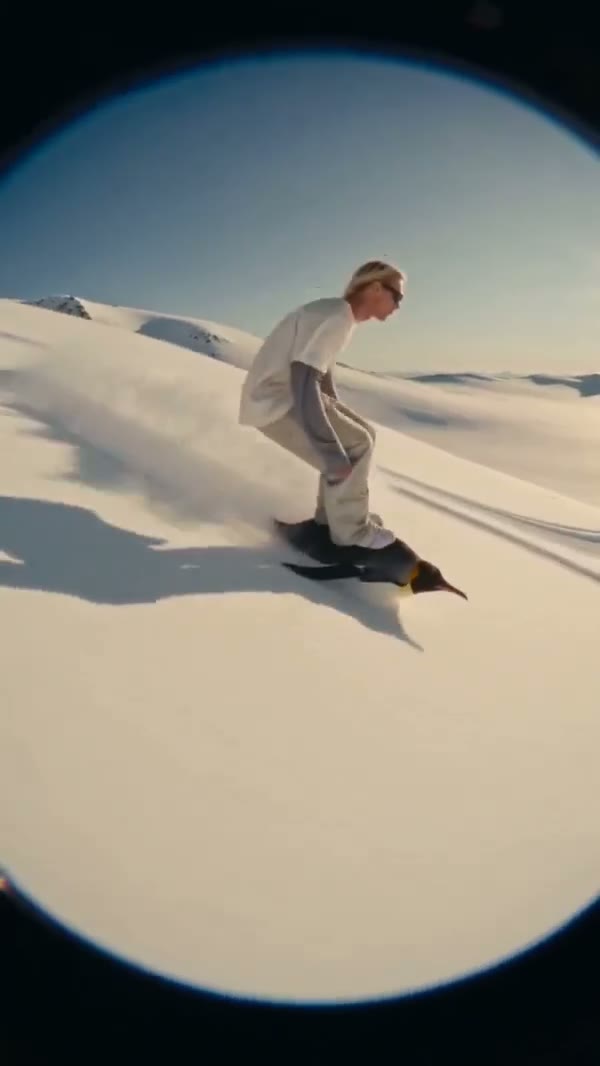
Scaling a clip up in an editor makes it larger and blurrier at once. Magi2 AI’s upscaler rebuilds each frame with a model that has learned what water, rock, skin and lettering look like up close, and keeps neighbouring frames consistent so nothing flickers. The 540p surfer clip below was taken to 4K this way.

OriginalUpscaled

Four output sizes

Sources from 360p to 1080p can go to 720P, 1080P, 2K or 4K. Targets at or below your source are hidden, so a run never makes a clip smaller.

Same length, same frame rate

The new file keeps the original cut and frame rate; only the detail in each frame changes.

Price shown up front

Credits follow the clip length, the target and the model, and appear next to the button before you start. If a run fails, they come back.

01

Vertical Creator and Interview Clips

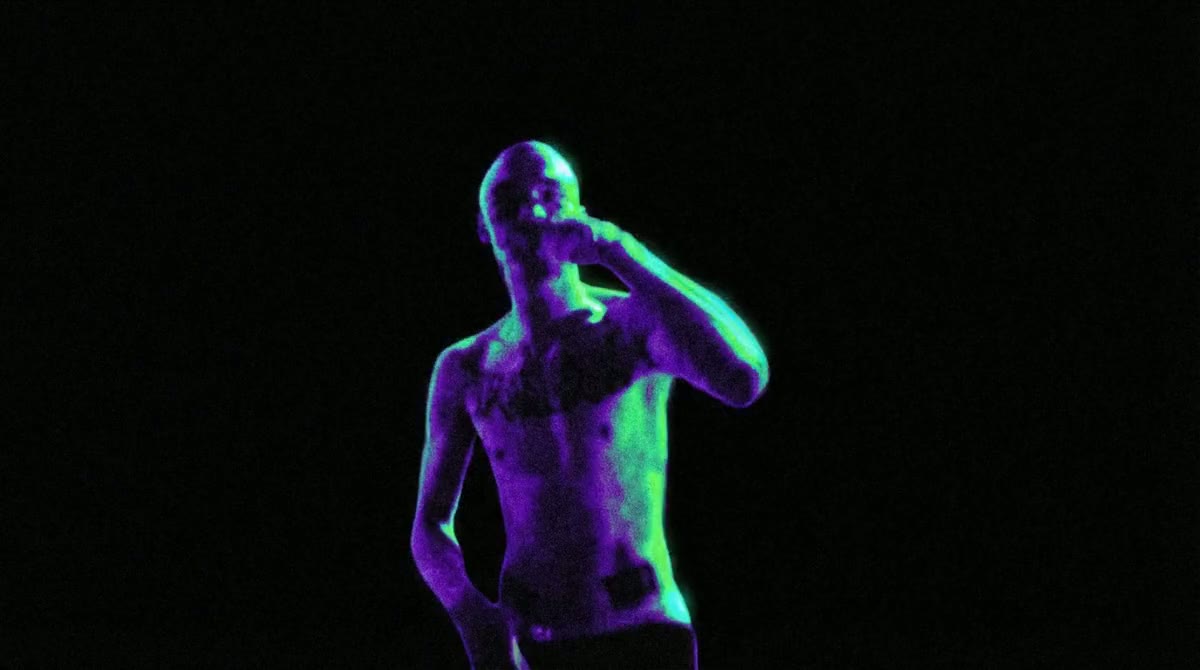
Street interviews and phone-shot creator videos often reach you at 360p after a few rounds of sharing. Taken to 1080 × 1920, hair, the microphone and the jacket texture read clearly again, which matters when the clip is going back out on Reels, TikTok or Shorts.

OriginalUpscaled
02

Finish AI-Generated Shots at Full Resolution

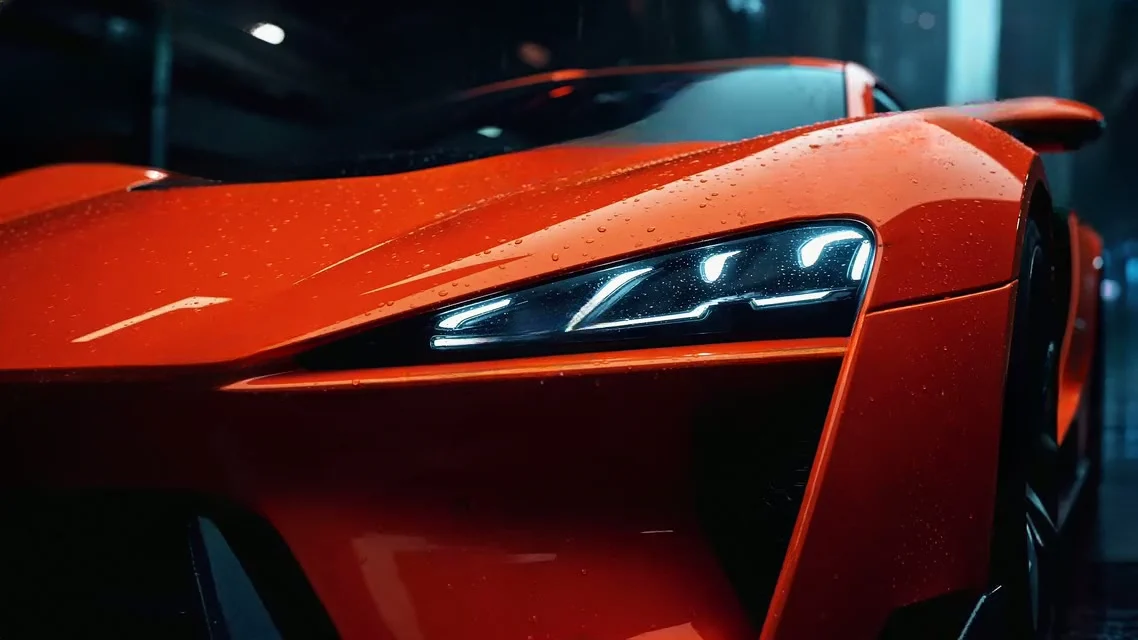
Draft renders from text-to-video and image-to-video models are frequently 480p or 720p. Once you have the take you want, upscale it so raindrops, reflections and panel lines stay crisp in an edit, an ad or on a large display, whichever model produced it.

OriginalUpscaled

03

Clean Lines for Animation and Painted Styles

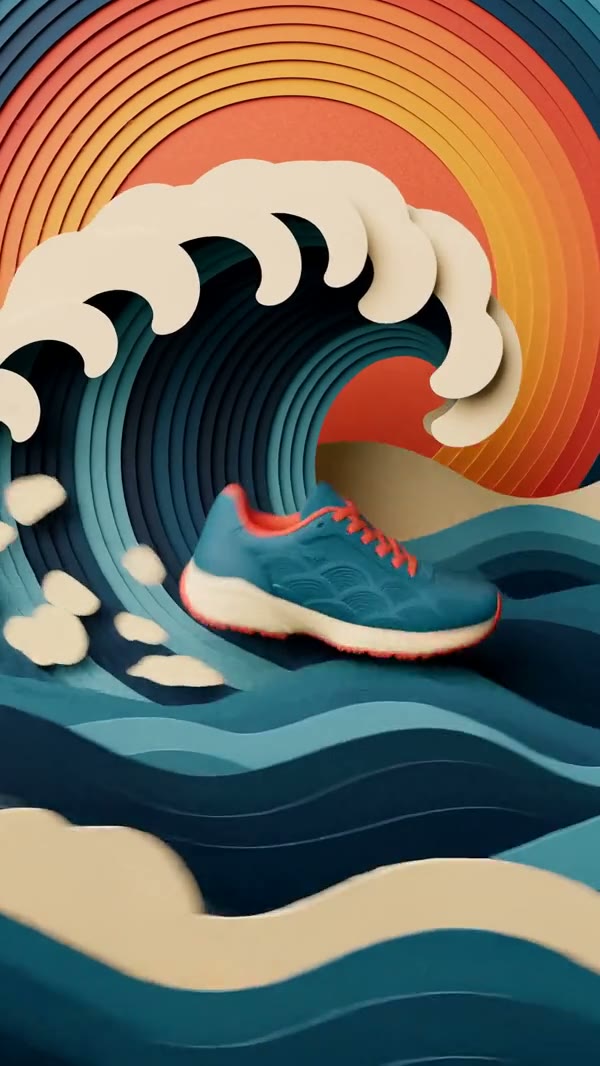
Cartoons and painterly clips suffer when an enhancer adds photographic grain. Here the outlines stay sharp and the colour washes stay even, so a small animated loop looks as if it had been rendered large in the first place.

OriginalUpscaled

Where a Sharper Clip Pays Off

Whenever footage has to fill a bigger screen than the one it was made for.

Social reposts

Social reposts

Upload at full quality so the platform’s own compression has more to work with.

AI film and music videos

AI film and music videos

Bring generated shots up to the resolution of the rest of your timeline.

Product videos and ads

Product videos and ads

Make small product loops crisp enough for landing pages and paid placements.

Archive footage

Archive footage

Rescue early phone recordings and old clips for today’s high-density displays.

Upscale a Video in Three Steps

Everything runs in the workspace at the top of the page. With an account, each result also stays in My Assets.

  1. 1

    Add a clip

    Click the drop zone or drag a file in. MP4 or MOV, 30 seconds at most, with a short edge between 360 and 1,080 px.

  2. 2

    Pick target and model

    Choose the output size and Standard, Professional or Large model. The credit estimate updates with every change.

  3. 3

    Wait, compare, save

    Follow the progress bar, play both versions in sync to check the difference, and download the new MP4.

Video Upscaler Questions

Costs, limits, timing and what the upscaler can and cannot repair.

Updated:

It renders each frame of the clip again at a higher resolution, predicting the missing pixels with a model rather than stretching the old ones, and keeps consecutive frames consistent so the motion stays smooth.

Yes. Without an account you get free credits for one upscale; signing up keeps whatever is left. The price depends on length, target and model: on Standard a 10-second clip costs 2 credits at 1080P and 6 at 4K. The exact figure is shown before you start, and a failed run returns its credits. More credits are on the pricing page.

Upload a source between 360p and 1080p, choose 4K as the target and run it. A 720p or 1080p source gives the cleanest 4K; a 360p one gains a lot of sharpness, but detail that was never recorded cannot be invented exactly.

Standard is the quickest and cheapest and is the only one with scene presets such as UGC, short drama, AIGC and old film. Professional is tuned for natural, sharp detail on most footage. The Large model is generative and adds the most texture to very soft clips.

SDR MP4 or MOV clips of up to 30 seconds, with a short edge of 360 to 1,080 px and a long edge up to 1,920 px. The size limit is 200 MB with an account and 100 MB without one.

A short clip to 1080P is usually ready in a few minutes; 4K and longer clips can take up to around half an hour. You can leave the page, and with an account the finished file waits in My Assets.

Very well, since generated clips carry no sensor noise. Make a take in the AI video generator, or bring one from any other model, and upscale it before editing.

It sharpens soft, low-resolution frames, but it does not stabilise the camera, and heavy motion blur is only reduced. Stabilise first in an editor, then upscale.

Yes, with the image upscaler, which enlarges JPG, PNG and WebP files 2×, 4× or 8×.

Nobody else. Uploads and results are not shared with other users; with an account they are kept in My Assets until you delete them.

Video upscaler

Make Your Next Clip Hold Up on a Big Screen

Upload a video, pick 720P, 1080P, 2K or 4K and download the sharper MP4.

Upscale a Video